
ClickUp is a cloud-based work-management platform built to be an all-in-one workspace, folding tasks, documents, whiteboards, goals, dashboards, time tracking, and team chat into a single tool. Its defining trait is configurability: a deep hierarchy of spaces, folders, and lists, custom statuses and fields, and more than a dozen ways to view the same work.
Where some competitors optimize for clarity and fast adoption, ClickUp optimizes for flexibility and consolidation. You can bend it to almost any workflow, and it sets out to replace several separate subscriptions at once. That ambition defines both its appeal and its main cost, which is the question every buyer faces and the one this review keeps returning to.

(Credit: ClickUp)
The work platform to choose when you want maximum flexibility and breadth for the price, and the wrong one if you need a team productive on day one without setup.
Teams that want one highly configurable tool to replace several, with someone willing to set it up.
You need fast, training-free adoption, or a tool that is simple out of the box.
Every ZoneVerified review follows the same evidence-first editorial process. Wherever we have genuine access to a tool, we test it ourselves, then support our findings with official documentation and recurring user consensus, and clearly distinguish first-hand experience from research-based conclusions.
Our ratings are independent and reflect our editorial assessment of each product alone. Commercial relationships never determine how software is reviewed, scored, or recommended, and our conclusions are never influenced by affiliate partnerships. Learn more about our Transparency Policy and Software Review Methodology.
What’s New in 2026
Several changes shape how ClickUp evaluates this year, and most center on its push to be a single workspace rather than a task tool.
- AI matured into ClickUp Brain. ClickUp’s AI now spans summaries, natural-language questions across your own workspace content, and writing help inside Docs and tasks. It is a paid add-on charged per member, not bundled into the base plans, so the real cost is your seat price plus Brain.
- The all-in-one push continued. Native chat, Docs, and Whiteboards are positioned as replacements for separate apps, reinforcing ClickUp’s pitch to consolidate your stack into one subscription.
- Performance investment. ClickUp’s newer platform generation targets the speed and lag complaints that dominated earlier feedback. Consensus suggests improvement, though the criticism has not fully disappeared at large scale.
- Pricing structure. Paid tiers continue to undercut per-seat rivals while bundling more, with a free plan that remains unusually generous on member count. Confirm current figures before publishing.
Software Overview
ClickUp is one of the most flexible and feature-dense work platforms available, and the one to reach for when you want a single tool to bend around almost any workflow and absorb several others. Its main cost is the inverse of that strength: a real learning curve, meaningful setup, and performance that can strain on very large workspaces.
- ✓Exceptionally configurable: deep hierarchy, custom statuses and fields, and more than a dozen views of the same work
- ✓Genuinely generous free plan, including unlimited members
- ✓Strong value: low per-seat cost relative to the capability it bundles
- ✓Broad all-in-one scope: docs, whiteboards, goals, dashboards, time tracking, and chat in one tool
- ✓Native time tracking available without reaching the top tier
- ✓Large integration catalog and an open API
- −Steep, front-loaded learning curve and real setup burden before it pays off
- −Can feel cluttered and overwhelming, especially for casual users
- −Performance and lag complaints recur in user consensus, concentrated on large workspaces
- −AI (ClickUp Brain) is a paid add-on, not bundled
- −Breadth can mean shallowness: some modules are less polished than dedicated tools
- −Mobile app is weaker than the desktop and web experience
The Trade-Off
ClickUp’s exchange is close to the mirror image of a tool like Asana: you get flexibility, breadth, and value, and you pay for it in setup time, a learning curve, and the occasional performance strain at scale.
On one side, almost nothing in the category bends to your workflow as completely or bundles as much for the price. On the other, ClickUp asks you to design your system before it rewards you, and a tool that can do almost anything can also overwhelm a team that just wants to track tasks.
Our editorial read: this is a trade worth making when flexibility, consolidation, or budget are your real constraints, and a poor one when fast, frictionless adoption is. That single distinction predicts most of whether ClickUp will feel like remarkable value or a tool nobody finished setting up.
Who It’s Best For
Teams that want one tool to replace several. ClickUp’s breadth across docs, whiteboards, chat, goals, and dashboards genuinely can retire separate subscriptions, and that consolidation is its strongest practical argument.
Teams with someone to own setup. The payoff is real but back-loaded behind configuration. A dedicated operations person, or anyone willing to design the workspace, unlocks what casual users never see.
Power users and process-heavy teams. Deep hierarchy, custom fields, and automation reward teams with complex, specific workflows that simpler tools cannot model.
Budget-conscious and growing teams. The generous free plan and low per-seat cost make ClickUp the value choice, especially against per-seat rivals with stingier free tiers.
Who Should Look Elsewhere
Teams that need day-one adoption without training. ClickUp’s flexibility is its learning curve. If getting a whole team to actually use the tool is the hard part, a more opinionated option will land faster.
Small teams wanting simplicity out of the box. The default experience can feel dense. Teams that just want to track a handful of tasks are better served by something lighter.
Teams sensitive to performance at scale. Lag reports concentrate on large, busy workspaces. A big deployment should test responsiveness during a trial rather than assume it.
Buyers who want a single best-in-class tool, not many adequate ones. ClickUp trades some depth per module for breadth, so a team that needs the best possible documents, or the best possible chat, may prefer a specialist plus a lighter task tool.
Every ZoneVerified review runs through the same editorial framework, refined over years of evaluating business software. Wherever possible, our scores are grounded in first-hand testing and supported by official documentation and recurring user consensus, so a score means the same thing from one review to the next.
The framework is structured, but scoring remains an editorial judgment. We combine first-hand experience, official documentation, and recurring user consensus to reach balanced conclusions rather than reducing software to a purely mechanical calculation. Each tool is assessed across six weighted dimensions, with security treated separately as a pass/fail requirement rather than a tradable score.
The largest weight goes to what the software actually does: whether it delivers the capabilities buyers reasonably expect in its category, how deep those capabilities run, and how well they work together as a coherent workflow rather than isolated features. We also reward genuinely distinctive functionality that provides practical value beyond simple feature parity, while noting when expected capabilities are locked behind higher-priced plans instead of being included.
We assess how quickly a new user becomes productive and how the tool feels over sustained daily use, not just on first impression. Strong scores reflect clear interfaces, sensible defaults, useful templates, and a learning curve that stays approachable even when the software offers significant depth.
Value reflects the relationship between what a tool delivers and what it costs, judged against realistic alternatives rather than in isolation. We consider entry pricing, how costs scale as teams or workloads grow, and whether the features that justify upgrading are included on the plan most buyers are likely to need.
We evaluate speed, stability, and reliability under realistic workloads. When performance claims at very large scale fall outside our direct testing, we disclose that limitation and rely on documented evidence alongside recurring user consensus.
We evaluate how well the software connects to a typical technology stack through native integrations, third-party connectors, and an accessible API, while considering whether the integrations most buyers depend on are available without requiring an upgrade.
We assess how easily users can get unstuck through documentation, self-service resources, and direct human support, as well as how the quality and availability of support change across pricing tiers.
Security is a requirement, not a score that can be averaged away. We assess a tool’s published security posture, its certifications where applicable, and its privacy practices, data handling, and access controls, verified against the vendor’s own trust documentation. Judging posture rather than certifications alone lets us fairly evaluate smaller vendors that demonstrate strong security practices without yet holding every enterprise certification. A tool that falls short here is flagged regardless of how it performs elsewhere.
Scores are assigned dimension by dimension before the overall rating is calculated using the fixed weights above. We never adjust individual dimensions simply to reach a preferred final score. Every review also distinguishes clearly between conclusions based on first-hand experience and those supported by official documentation or recurring user consensus.
Read our complete software review methodology.
Core Features
ClickUp’s defining trait is that it tries to be everything, and configurability is the thread that ties it together. The same work can be modeled, viewed, automated, and reported on in more ways than almost any competitor offers. That breadth is the strongest argument for ClickUp and the root of its learning curve, so the lens to carry through the capabilities below stays constant: more power, more setup.
Work structure and views
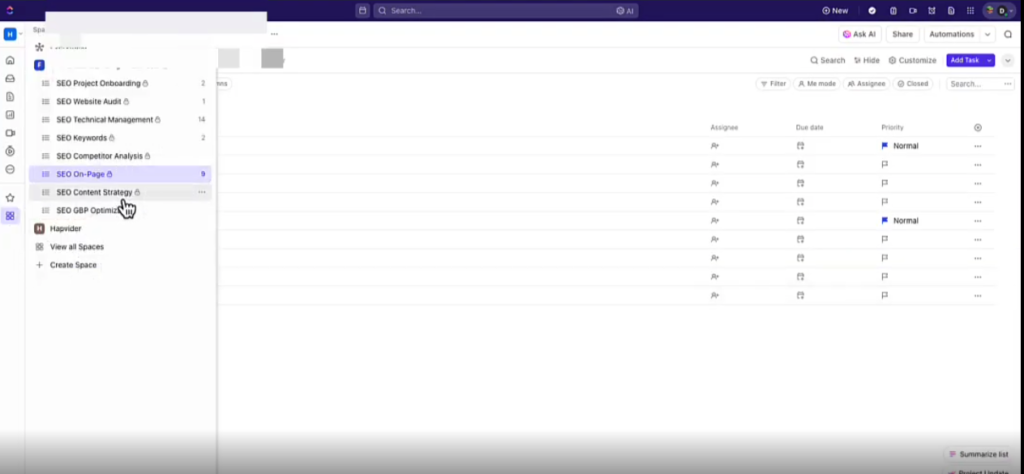
ClickUp organizes work in a deep, flexible hierarchy and lets you look at it through more lenses than any mainstream rival.
Key capabilities:
- Hierarchy of Workspaces, Spaces, Folders, Lists, Tasks, and Subtasks
- Custom statuses and custom fields, configurable at multiple levels
- More than a dozen views, including List, Board, Calendar, Gantt, Timeline, Table, Workload, and Mind Map
- Task dependencies, recurring tasks, and multiple assignees
- Templates for spaces, lists, and tasks
In practice, this is ClickUp’s superpower and its tax in the same breath. The hierarchy can model almost any team’s structure, and the sheer number of views means most people can find one that matches how they think. The cost is that none of it is opinionated. ClickUp hands you a flexible, near-blank canvas and expects you to design the system, which is empowering for a team with an owner and paralysing for one without. The contrast with a tool like Asana is exact: Asana decides for you and you adapt to it, while ClickUp asks you to decide everything yourself.
That flexibility extends well past task management into territory most work tools leave to other apps.
The all-in-one scope
ClickUp’s bigger ambition is to replace your whole stack, so it bundles modules that competitors leave out.
- Docs – wiki-style documents that link directly to tasks
- Whiteboards – visual brainstorming that converts into tasks
- Chat – native team messaging inside the workspace
- Goals – measurable targets tied to tasks and progress
- Dashboards – customizable reporting widgets
- Native time tracking – built in, not bolted on
This is the heart of ClickUp’s value pitch: cancel several subscriptions and keep one. For many teams that math genuinely works, and having docs, tasks, and goals in one place removes the friction of jumping between tools all day. The honest caveat is that breadth can mean shallowness. The Docs and Whiteboards are capable but not as refined as Notion or a dedicated whiteboard tool, and native Chat is convenient rather than a full Slack replacement for most teams. The fair way to read it: ClickUp’s modules are good enough to consolidate around if “good enough in one place” beats “best-in-class across five subscriptions,” and for a lot of teams that is a defensible trade rather than a compromise.
Layered over all of this is an AI assistant, sold separately.
ClickUp Brain (AI)
ClickUp Brain is the platform’s AI layer, and like its peers it is a paid add-on rather than something bundled into the base plans.
- Summaries and stand-up updates generated from task and doc activity
- Natural-language questions answered across your own workspace content
- Writing assistance inside Docs and tasks
- AI-assisted automation setup
Brain is useful, and the ability to ask questions across your own workspace data is the part most likely to earn its keep. The buyer-relevant fact is the pricing model: Brain is charged per member on top of your plan, so the real cost is your seat price plus Brain rather than the headline plan rate. That is consistent with the wider industry, since Asana meters its AI Studio by credits, so a separate AI line item is closer to a norm than a quirk. We treat Brain’s day-to-day value as genuine but its economics as something to price in deliberately rather than assume is included.
Beneath the AI sits the automation most teams will reach for more often.
Automation
ClickUp’s automation engine handles routine work without code, built on triggers and actions, and is available well before the top tier.
- Move, assign, and update tasks automatically on a trigger
- Status-based and date-based rules
- Pre-built automation templates for common processes
The everyday value here is real and, as with rivals, unglamorous: routing, assigning, and status changes that quietly remove manual upkeep. ClickUp’s automations are more generous on lower tiers than several competitors, which feeds the value story. The constraint to watch is the monthly automation-run cap that scales with tier, so an active team with busy rules should size its needs against the cap rather than discover the ceiling mid-month.
Automation keeps work moving; collaboration keeps people aligned around it.
Collaboration
Because discussion, documents, and chat all live inside the same workspace as the work, ClickUp keeps context attached to tasks rather than scattered across other tools.
- Task comments, assigned comments, and @mentions
- Native Chat and collaborative Docs
- Proofing and review on tasks and documents
Keeping conversation on the work is a strength ClickUp shares with the category, and the all-in-one scope means a discussion, the document it references, and the task it produces can sit together. The recurring frustration in consensus is less about collaboration itself and more about overall density: ClickUp surfaces a great deal at once, and on a busy workspace the interface can feel cluttered, which compounds the learning curve rather than easing it. Managing what each person sees, through view settings and notification tuning, is worth doing early.
Ease of Use
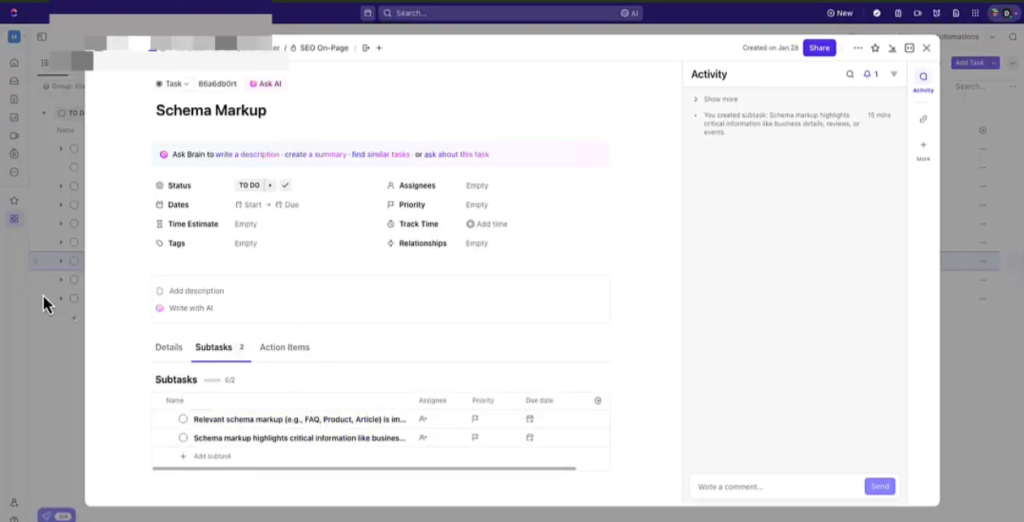
This is where the configurability tax is paid, and it is ClickUp’s weakest dimension by a clear margin. A new user does not open ClickUp and immediately know what to do the way they might with a more opinionated tool. The deep hierarchy, the many views, and the density of options create a real learning curve, and user consensus flags it consistently. Onboarding a team usually means someone sets up the workspace first and provides some training after.
The flip side is genuine: once configured to a team’s workflow, ClickUp can be more efficient and more tailored than simpler tools allow, because it was built to be shaped. The fair framing is that ClickUp’s learning curve is front-loaded and steep, the opposite of a gentle entry that steepens later. This is the single biggest reason a highly capable tool scores only average here, and it is the dimension most likely to decide whether ClickUp sticks with a team or quietly gets abandoned.
Pricing & Value
ClickUp uses per-user, per-month pricing with a genuinely generous free tier. Figures below reflect annual billing and should be confirmed before publishing.
- Free Forever: $0. Unusually generous, with unlimited tasks and unlimited members, subject to storage and advanced-feature limits.
- Unlimited: around $7/user/month annually. Removes core limits, adds unlimited storage, more views, and basic automation.
- Business: around $12/user/month annually. Adds advanced automation, dashboards, timelines, and more granular controls.
- Enterprise: custom pricing, adding organization-wide controls, advanced security, and dedicated support.
- ClickUp Brain: a separate per-member add-on on top of any plan.
Value is ClickUp’s strongest dimension. The free plan is one of the most generous in the category, and the contrast with per-seat rivals is stark: where some competitors cap new free accounts at a handful of users, ClickUp’s free plan supports unlimited members, so a small team can genuinely grow on it before paying anything. Paid tiers undercut many per-seat rivals while bundling more capability.
Two caveats keep this honest. ClickUp Brain is a separate per-member cost, so an AI-reliant team should add it to the headline figure. And the lowest tiers cap automation and some features, so the effective price for a feature-hungry team is higher than the entry rate suggests. Even with those, for capability per dollar ClickUp is hard to beat, which is exactly why budget-led buyers land on it.
Performance
Performance is the one area where ClickUp’s ambition shows strain in user consensus. Reports of lag and slowness recur, concentrated on large, busy workspaces with heavy data and many automations. The same breadth that makes ClickUp powerful can make it heavy.
An important boundary: these reports are user consensus, concentrated on large deployments we have not independently tested at that scale, so we weigh them as a recurring pattern rather than a first-hand finding. Our own everyday use on smaller workspaces has been acceptable rather than sluggish. ClickUp has invested in performance with its newer platform generation, and consensus points to improvement, though the criticism has not fully vanished. The practical read: for small-to-mid teams performance is unlikely to be a dealbreaker, but a large deployment should test responsiveness during a trial before committing. This is why performance scores moderately rather than high, the concern is real in consensus but unconfirmed by us at scale.
Integrations
ClickUp advertises more than 1,000 integrations, covering Slack, Google Workspace, Microsoft, GitHub, Figma, and many others, plus connectivity through Zapier and a public API. For most teams the native catalog and API cover requirements comfortably. The caveat is depth: some integrations are richer than others, and a few rely on third-party connectors rather than deep native support, so check the specific tool you depend on against the live directory rather than the headline count.
Customer Support
Support availability scales with plan tier, with paid plans offering broad availability, and ClickUp backs it with an extensive help center, ClickUp University, and an active community. User consensus is generally positive on availability and self-service resources, with the usual note that the depth of hands-on help varies. Direct support at large organizations is outside our first-hand experience, so we lean on consensus there. For most buyers, the self-service material resolves the majority of everyday questions, and responsiveness improves with the plan you are on.
Security
ClickUp maintains a documented security posture, which should be verified against its Trust Center rather than secondary summaries. It holds recognized certifications including SOC 2 and ISO 27001, is GDPR-aligned, offers HIPAA support on higher tiers, and uses encryption in transit and at rest along with SSO, SAML, two-factor authentication, and granular access controls.
For most buyers this clears the gate. Three nuances: HIPAA support and the strongest administrative controls are tied to the higher tiers; ClickUp’s AI features process workspace content through AI systems, so teams with strict data-governance requirements should review the subprocessor list and AI terms directly; and the standard caution applies against storing highly sensitive personal data in any work platform regardless of certification.
Final Verdict
After all of it, ClickUp resolves into a tool whose identity is breadth and flexibility, and our score of Very Good reflects that shape precisely: outstanding at configurability and value, held back mainly by the learning curve and setup that same power demands, with performance questions that surface at scale.
The decisive question is the one we raised at the start. If you want one tool that bends to almost any workflow and consolidates several subscriptions, and you have someone to set it up, ClickUp delivers more capability per dollar than almost anything in the category. If you need a team productive on day one without training, the flexibility that is ClickUp’s strength becomes its obstacle, and a more opinionated tool will serve you better.
What you are buying with ClickUp is not simplicity, and not polish in every corner. It is reach: the ability to do almost anything, in one place, at a low price, provided you are willing to invest the setup to make it yours. For the team that wants exactly that, it is excellent value. For the team that wants to open a tool and just go, ClickUp asks more than they want to give.
Alternatives
- Asana — More opinionated, faster to adopt, and cleaner to work in, but pricier per seat with a far stingier free plan. The natural choice when team adoption, not flexibility, is the hard part.
- monday.com — Visually polished and approachable at a mid-range price, sitting between ClickUp’s flexibility and a simpler tool’s ease. Worth a direct comparison for teams weighing power against approachability.
- Notion — Stronger for documents and flexible knowledge management, weaker for execution-focused project tracking. Overlaps directly with ClickUp’s docs ambition.
- Trello — Far simpler and Kanban-first, ideal when ClickUp would be overkill for basic task tracking.
- Jira — Built for software teams that need issue tracking and agile depth rather than a general work platform.
Frequently Asked Questions
Is ClickUp free?
Yes, and unusually so. The free plan includes unlimited tasks and unlimited members, with limits on storage and advanced features. For a small or growing team this is one of the most generous free tiers in the category.
About the Author

Mademoiselle Jove, Senior Editor, ZoneVerified
Mademoiselle Jove is the Senior Editor at ZoneVerified. With over eight years of professional experience in SEO, technical SEO, content strategy, and digital marketing, she specializes in evaluating software through the lens of real business workflows. Her experience includes building SEO systems, managing large-scale content operations, conducting technical audits, and working with a wide range of productivity, analytics, marketing, and project management tools. She oversees ZoneVerified’s editorial standards to ensure every review is accurate, transparent, and genuinely useful.
Editorial Independence: ZoneVerified publishes independent reviews based on research, editorial analysis, and genuine hands-on experience where applicable. Our recommendations are never influenced by compensation or commercial relationships.